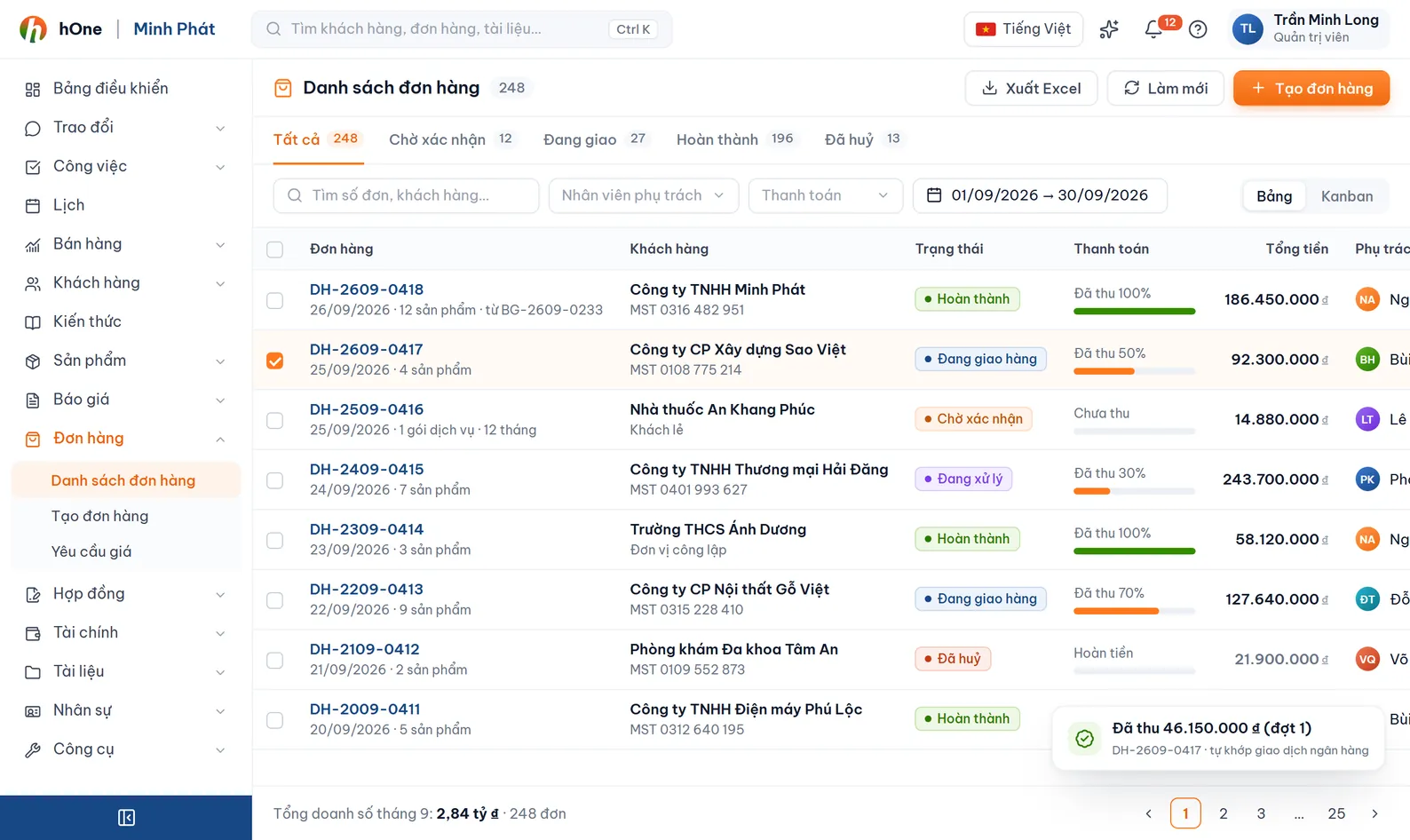
List with saved views
Built-in views such as Mine, Owing, In progress and Expiring soon. Filter by status, owner or order date, then click "Save view" to reuse it.


One order holds the customer, products, price, owner, balance due and delivery on a single screen. You see which orders still owe money and which wait for customer confirmation, without opening a spreadsheet.
Without one shared place, everyone keeps their own version. At month end, accounting has to ask each person which orders shipped and which are unpaid.
hOne creates the order from a quote or by hand, lets the customer review and confirm through a link, routes discounts through the approval levels you set, records payments as vouchers and keeps a history of every change.
Built-in views such as Mine, Owing, In progress and Expiring soon. Filter by status, owner or order date, then click "Save view" to reuse it.
Standard orders cover one-off goods and services. Subscription orders carry a start and expiry date, a month or year period, a reminder and an auto-renew option.
Staff ask for a discount on the whole order or a single line. Set tiers by % off or amount: auto-approve, require approval or reject. Approvers can be the manager, team lead or people you choose.
Send the order by email or "Share link". The customer reads the PDF, accepts, rejects or edits quantities. Revoke the link anytime and turn on reminder emails for customers who have not replied.
The "Collect payment" button creates a payment voucher from the order. Payment status is Unpaid, Partially paid or Paid.
Click "Check stock" to see each SKU as in stock or short. Each line has its own tax, discount and period; exclude a line from the total without deleting it.
Add, edit and reorder order statuses to match your process. Number orders, stock-out slips and delivery notes with the prefix, date parts and reset cycle you choose.
Assign the responsible staff and the salesperson, and record the revenue source. Internal notes and status changes share one activity timeline.
Convert a quotation or click "Create order". Pick the customer and contact, add products, then check payment terms and the PDF template.
Send a price request for any line that needs a discount. Once approved, email the order or share the link for confirmation.
Move the order through your own statuses, create the stock-out slip, ship it and record the tracking number on the order.
Record each payment, watch balances in the "Owing" view and renew subscription orders as they near expiry.
Minh sells a 12-month software plan to Company ABC. Lan, the team lead, approves the discount; Hoa in accounting collects payment.
In the separate Account portal. The Orders area is for your own sales to your own customers.
The customer can accept, reject or change item quantities. If they edit the order, discounts and offers already applied are removed, and the customer is warned first. Links expire and you can revoke them.
Yes. Open Order settings, tab Order statuses: add, edit, delete, drag to reorder, set colour and icon, and choose which statuses allow editing, status change or cancel. The default set is Draft, Pending, Confirmed, Processing, Shipping, Delivered, Cancelled.
Yes. Purchase requests and Purchase orders sit in the same Orders area, shown according to each user's purchasing permission and kept separate from sales orders.