Folders and three stores
Nested folders with colors. Three tabs: Mine, Company (everyone) and Shared with me. A storage bar, search, and multi-select to move or delete files.


One document store for the whole company: nested folders, private, shared and company-wide files, Word, Excel and PowerPoint editing in the browser, link sharing and files received straight from your office scanner.
Contracts, price lists and scanned papers sit on personal computers, in Zalo, in email and on USB sticks. To find one you ask the whole team, and to send one you attach an old version.
hDocuments organises files in folders and splits them into My files, Company and Shared with me. Files arrive by upload, by scanner over FTP, or through a WebDAV network drive. Sharing uses expiring links, passwords and an access log; a deleted file can still be restored from Trash.
Nested folders with colors. Three tabs: Mine, Company (everyone) and Shared with me. A storage bar, search, and multi-select to move or delete files.
Drag and drop files or a whole folder with its subfolders. An option overwrites files with the same name (the old copy goes to Trash). Admins set the file size and allowed types.
Create Word, Excel, PowerPoint or .txt notes inside hOne and edit them with the hDocs editor in full screen. hDocs must be licensed for your company.
Share with users as View only, Comment or Edit. A public link lasts 7 days; folders offer a password, revoke and an access log.
Your office scanner sends files to hOne over FTP. Each person has a personal scan folder and the company has a shared Scan folder; files import into the folder you choose and notify you.
With OCR on, scanned images and PDFs are read by AI: full text, a confidence score, and a suggested document type and file name. OCR costs AI usage, so enable it per person or for the shared Scan folder.
Mount the document store as a drive on Windows or Mac over WebDAV, with a separate app password per device that you can revoke. You can also connect a personal Google Drive.
Deleting moves a file to Trash and you can restore it; only Delete permanently removes it for good. The file menu has a Sign action that hands off to digital signing.
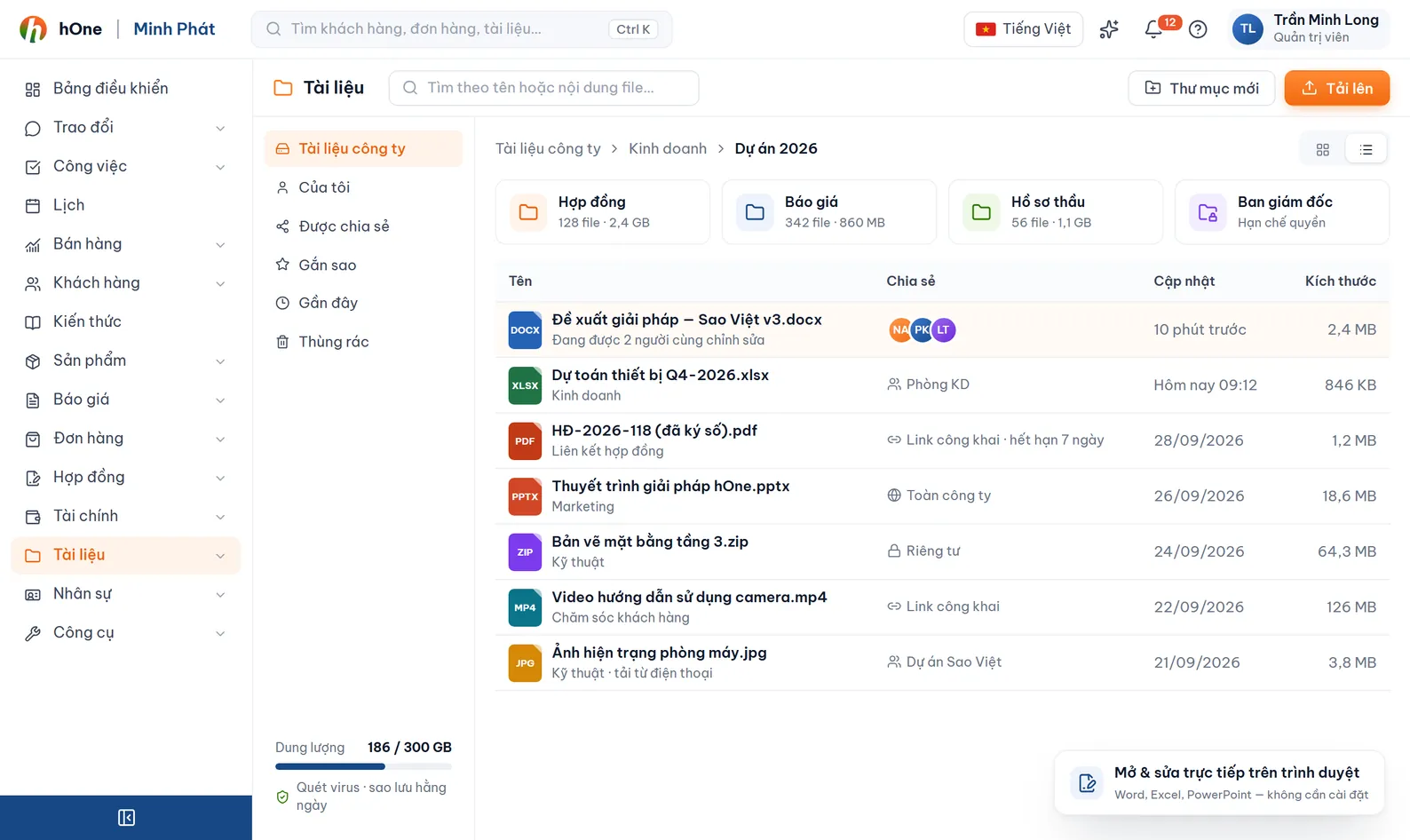
Create folders by department or customer, set colors, add subfolders. Files the whole company needs go in the Company store.
Upload from the browser, or set your scanner to send over FTP using the server, user name and FTP password shown in Document settings. To use it like a drive, create a WebDAV app password.
Share with colleagues as view or edit, or create a link for outsiders and check the access log when needed.
Search by name, pick existing documents for project handover or guides, send a file for signing, and restore from Trash if you deleted by mistake.
Demo Store signs a paper contract with Company ABC. Lan wants to keep the scan and let the customer view a password-protected copy.
Admins set the maximum file size, files per upload and allowed types in Document settings. The page shows how much storage is used. The company's total quota is set by its plan.
No. Each result comes with a 0-100 confidence score, so check key fields such as the contract number or company name. OCR runs on AI, so it has a cost. If OCR cannot read a file, the file is still imported.
The hDocs editor must be licensed for your company. If it is not, you can still upload, download and share as usual, or mount the WebDAV drive and open files in Word or Excel on your computer.
Deleting moves the file to Trash so you can restore it. When you upload with the overwrite option, the old copy also goes to Trash. Only Delete permanently or Empty trash removes it for good.
A document public link expires after 7 days and can be revoked; folders can have a password and an access log.
It works if the scanner has a Scan to FTP function. You enter the server, user name and FTP password shown in the scanner settings. The scanner needs a network path to hOne, which your IT person can set up.