Month, week, day and list views
Everyone gets a personal calendar and can add more colored ones. Switch each source on or off: events, tasks, leave, overtime, holidays, attendance, bookings. Drag and drop to change a time.


One calendar for events, meetings, timed tasks, leave, overtime and public holidays. Customers book through their own page and only see times a person is really free, and the calendar syncs both ways with Google Calendar.
To book a consultation, staff trade messages with the customer to agree a time, then copy it to a private calendar. Two people end up with the same slot, or book a day the other person is on leave.
The booking page works out free time from events, timed tasks, overtime, approved leave and other bookings of the person involved. The customer picks a slot and confirms by email, staff approve if required, and the booking lands in the calendar.
Everyone gets a personal calendar and can add more colored ones. Switch each source on or off: events, tasks, leave, overtime, holidays, attendance, bookings. Drag and drop to change a time.
Three types: Event, Meeting, Reminder. All-day or timed, repeating, with a clash warning and a reminder from 5 minutes to 1 day before, by notification or email.
Invite colleagues and outsiders by email. Invitees choose Accept, Maybe or Decline right in the calendar, and you can resend the invitation to people who have not replied.
Choose Google Meet, Zoom, Microsoft Teams or a custom link. Google Meet creates the link once you have connected Google Calendar; for Zoom and Teams you paste the meeting link.
Each person connects their own Google account for two-way sync, which runs every 15 minutes or on demand with the Sync button. An admin configures the Google app first.
Create several pages, each with its own address, logo and time zone. Each booking type sets the duration, buffer time, daily limit and custom fields.
Choose Individual, Automatic round-robin (the free person with the fewest bookings) or Visitor chooses. You can require approval and let visitors propose their own time.
Get embed code as inline, a floating button or a popup, so people book right on your site. Uses reCAPTCHA against spam if your company has set a key.
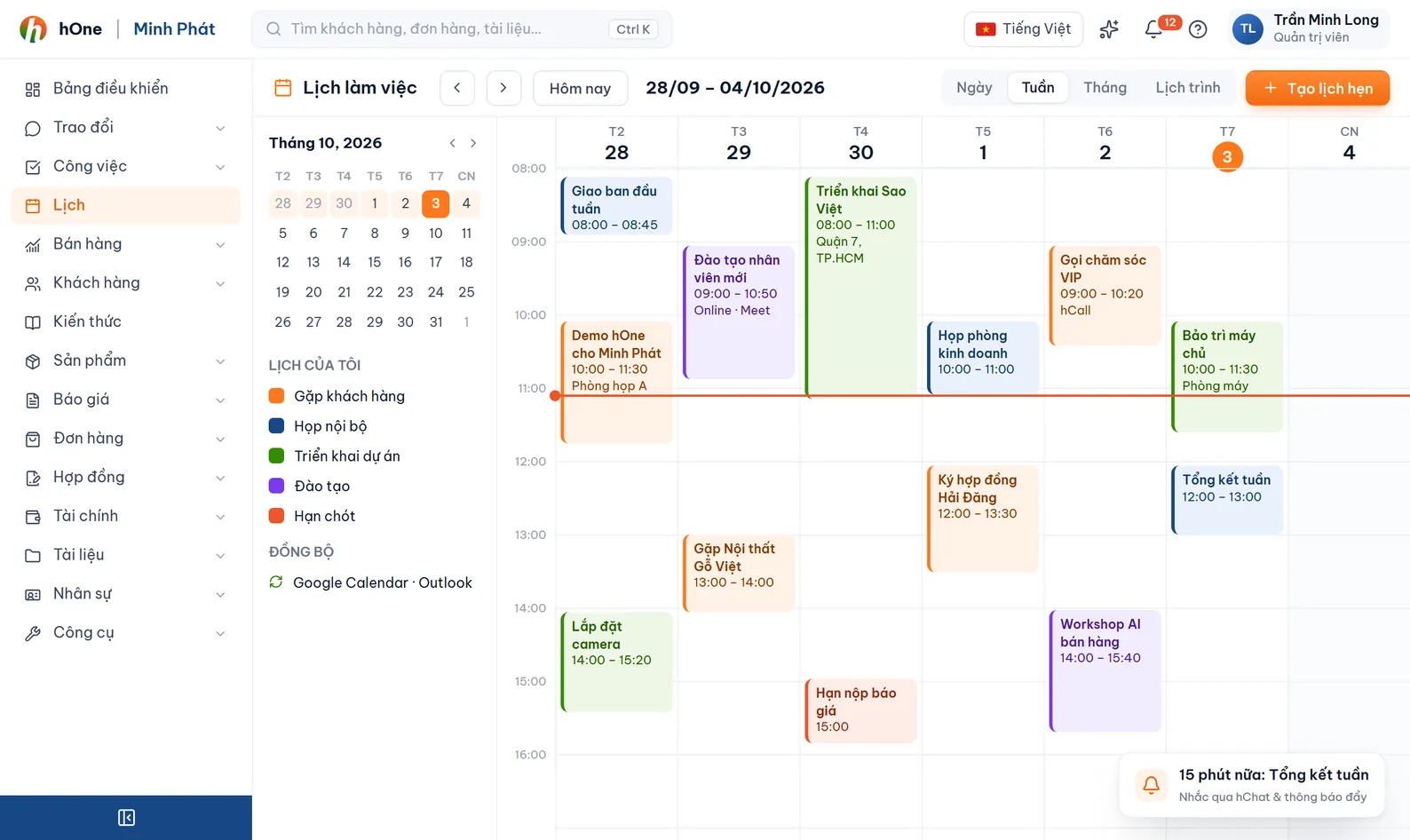
Open Calendar and choose which sources to show. Google Calendar users click Connect Google Calendar and sync. Create shared calendars and share them with View or Edit access.
Go to Booking settings: create the page, add booking types, set availability for each weekday (with Apply to all days), add members, choose the assignment mode and whether approval is required.
The customer opens the link, picks a type, date and time, and fills in details. They get an email with a confirm button that expires after 30 minutes; if they do not confirm, the booking expires and the slot is released. If the page requires approval, staff approve next.
In the detail drawer, staff Confirm, Reject with a reason, Reschedule or Cancel. Customers can also cancel from a link in their email. A confirmed booking shows in the assignee's calendar.
Demo Store has a Quote consultation page set to Visitor chooses and approval required. Hoa is a new customer.
No. The customer only fills in a name, an email and whatever details you ask for. The email is used to send the confirm button and the cancel link. If your company has configured reCAPTCHA, the customer completes one extra check.
Each person's calendar in hOne: events that are not cancelled, timed tasks, overtime, approved leave (blocks the whole day), holidays and other bookings. Google events already synced into hOne count too. A page can be set to allow booking on holidays.
The confirmation link expires after 30 minutes. The booking then becomes expired and the slot is released for someone else.
hOne syncs both ways with Google Calendar. Each person connects their own account after an admin configures the Google app. For Zoom and Teams, you paste the meeting link into the booking.
As an in-app notification to the calendar owner and internal attendees; if you choose an email reminder, the calendar owner also gets an email. hOne checks reminders every minute.